Official Shadowrocket Guide

Shadowrocket Guide
for All Platforms

Cross-platform proxy client with routing rules for importing existing configurations and routing traffic; iPhone / iPad: $2.99 one-time on the App Store; Mac, Windows, Android and Linux: free.

Current version See the download page · Mac, Windows, Android and Linux: free; iPhone / iPad: $2.99 one-time

Already have a configuration? See the first-connection guide →

Global RoutingConfigOn Demand
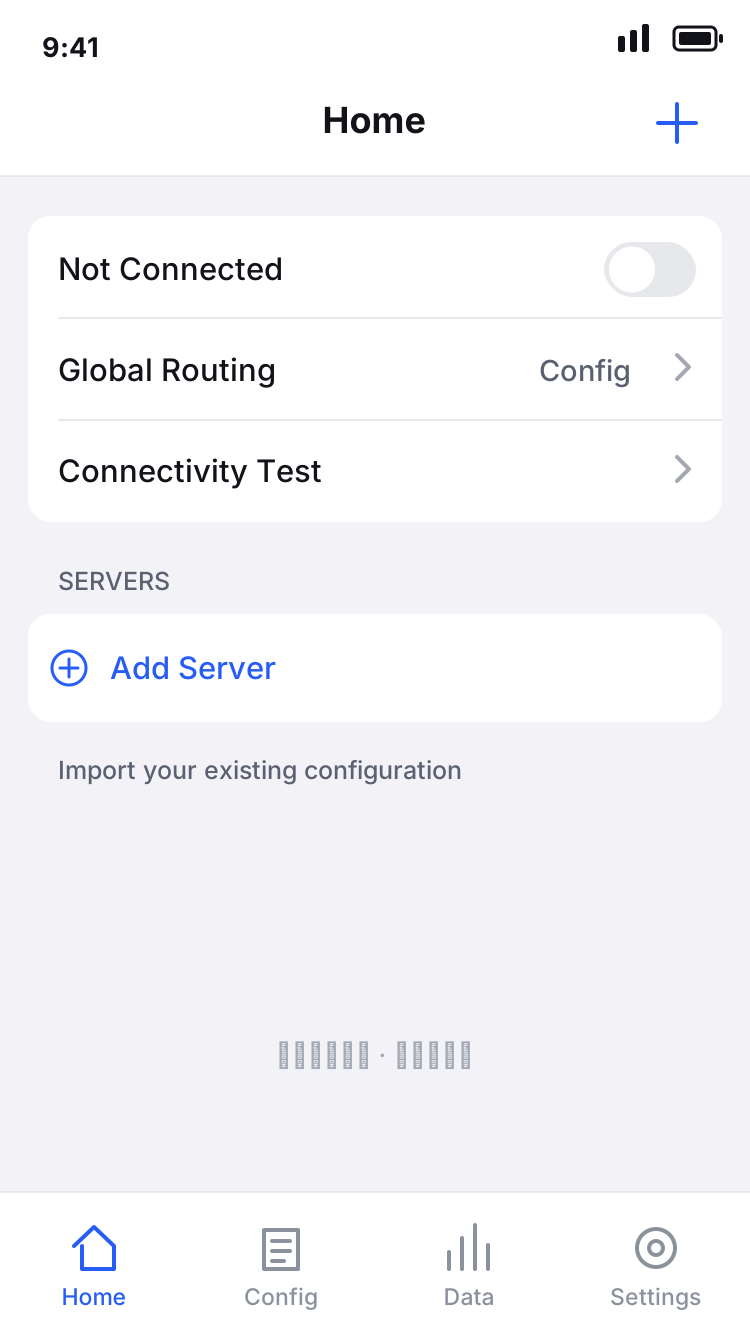
Shadowrocket Home interface illustration showing the connection toggle, Global Routing, Connectivity Test and Add Server; not an actual screenshot
Home interface illustration: select a server first, then check the connection toggle.
[Rule]
  1. DOMAIN-SUFFIX,example.com,PROXY
  2. DOMAIN-KEYWORD,example,PROXY
  3. IP-CIDR,192.168.0.0/16,DIRECT
  4. DOMAIN-SUFFIX,ads.example.com,REJECT
  5. FINAL,DIRECT
PROXY DIRECT REJECT

Syntax example only, not a complete configuration ready to use. Rules are checked from top to bottom; specific domain rules should come before broader rules.

01 · Configuration and connection

Shadowrocket Features and settings

Import existing server details first, then choose how to connect. The steps below use iPhone / iPad interface labels to identify controls; other platforms may differ.

Rules are checked in order

Routing rules determine whether a request uses a proxy, connects directly or is rejected. In Home, select Config under Global Routing, and the client checks destinations in the order of the current configuration's Rule list. Back up the file before editing, put specific domains before broad conditions, and leave FINAL as the fallback for unmatched requests. DOMAIN-SUFFIX checks domain suffixes; IP-CIDR checks address ranges. They are different matching conditions. If routing behaves unexpectedly, identify the rule that actually matched and edit that entry rather than replacing the entire configuration at once.

Look up rule keywords →
[Rule]
DOMAIN-SUFFIX,example.com,PROXY
IP-CIDR,192.168.0.0/16,DIRECT
FINAL,DIRECT

First-use checklist: existing subscription or server parameters → import entries → select a server in Home → check Global Routing → turn on the connection toggle → run Connectivity Test. Change one condition at a time to distinguish import, server and routing problems. Interface layouts can vary by platform; use the English setting labels to locate controls.

02 · Get it by device

Downloads for all platforms

iPhone / iPad: $2.99 one-time on the App Store; Mac, Windows, Android and Linux: free. Desktop and Android installers are provided on this site's download page under /dl/shadowrocket/.

iPhone / iPad

$2.99 one-time on the App Store, with one purchase covering both devices; Mac, Windows, Android and Linux versions are free. Check the App Store listing for system requirements. Check your store account's region and the app details before purchasing; if you have purchased it before, first check your purchase history.

Mac

Free, with separate Apple Silicon and Intel versions; iPhone / iPad are $2.99 one-time on the App Store. Check the chip or processor in About This Mac, then choose the matching installer. If you see “Developer cannot be verified,” confirm the download source and follow the download page's “Privacy & Security” instructions.

Windows

Free, with a 64-bit installer; iPhone / iPad are $2.99 one-time on the App Store. Follow the setup wizard after downloading. If SmartScreen appears, confirm the file came from this site, then review “More info” and “Run anyway.” Follow administrator policies on organization-managed computers.

Android

Free, with an arm64 installer; iPhone / iPad are $2.99 one-time on the App Store. If Android asks for permission to install from this source, enable “Allow from this source” only for the app you use to open files from this site. You can turn off this permission after installation. On first connection, review the system's network connection authorization prompt.

Linux

Free; choose deb, rpm or AppImage for your distribution. iPhone / iPad are $2.99 one-time on the App Store. Install deb and rpm packages with the corresponding package manager; AppImage needs execute permission before its first run. The download page includes command instructions. Check the local filename and processor architecture before running them.

03 · Verify the app and purchase records

Verify the app, then choose how to get it

Shadowrocket is a closed-source commercial application. This is the official website and guide. Acquisition options vary by device; do not confuse store purchase records with permission to connect to a server.

Store visibility and account region

iPhone / iPad app availability depends on the store associated with your current App Store account, not the device's display language. If you cannot find it, check the country or region of your store account, then open the product page provided here. The app is not available in the mainland China store; availability and purchase conditions in other regions depend on what the store currently displays. Avoid changing your system region just to repeat a search; it is separate from your store account's region.

To check your account region, open the account settings in system Settings, go to Media & Purchases and view Country/Region. Before changing it, read the account page's requirements for balance, subscriptions and payment methods. Resolve any account restrictions first. See the genuine app guide for detailed steps and common errors. This site does not provide accounts.

Purchases, reinstalling and switching devices

iPhone / iPad are $2.99 one-time on the App Store, and both devices can use the purchase record on the same account. Mac, Windows, Android and Linux versions are free and available from this site's download page. If the store charges in local currency, the displayed amount applies. Check device compatibility before purchasing; iPhone / iPad system requirements are as listed on the App Store page.

When switching devices or reinstalling, first confirm that you are signed in to the App Store account used for the purchase, then look for Shadowrocket in your purchases. If the app shows a price again, do not pay immediately; first check the account, store region and purchase record. Restoring the app does not automatically restore subscriptions or configurations. If the old device is still available, back up your configuration and verify the default server and rule file on the new device.

Manage the client and server service separately

Client purchase ≠ server plan. Shadowrocket manages and uses server details you already have. This site does not provide, sell or recommend servers or subscriptions. Installing the client does not mean you have access to a working server, and importing a configuration does not mean the server is currently reachable. Check the address, port, authentication parameters and validity with your own configuration source. Do not share authentication details in public forums.

Server subscriptions and rule configurations also serve different purposes: the former provides connection entries, while the latter determines how requests are matched and handled. For connection problems, first identify whether the issue concerns purchase, installation, import or networking, then open the relevant section. Store purchase records cannot fix an expired subscription link, and updating rules cannot fix incorrect authentication parameters.

Updates and configuration backups

Check for iPhone / iPad app updates in the App Store; get new Mac, Windows, Android and Linux installers from this site's download page. Before updating, note the selected configuration, Global Routing state and commonly used servers, and keep necessary backups. After updating, run a connection test before restoring more complex rules and On Demand conditions. This helps avoid introducing several changes at once.

Desktop and Android versions use their respective platform download options; they do not follow the iPhone / iPad App Store purchase process. If a system warning appears during installation, first confirm that the file came from this site, then follow the installation approval instructions for your system on the download page. Restrictions on organization-managed devices should be handled by an administrator. Do not disable all system protection just to run the app.
[Rule] / MATCH ORDER

Global Routing and routing rules

Check the mode first, then inspect the rules. In Global Routing, Config, Proxy and Direct determine how requests are handled. If editing Rule does not produce the expected change, Config may not be selected, or an earlier rule may already match.

Under Config, rules are checked in order. Put specific domains before broad conditions; FINAL handles requests that did not match earlier rules. In the first-screen example, DOMAIN-KEYWORD matches before the later ad-domain rule, so it is only a syntax illustration. The example below moves the specific domain earlier to show how order affects the result.

PROXY sends a request to the proxy policy, DIRECT connects directly, and REJECT denies the request. Policy names do not indicate connection quality, and colors only identify rule types. During troubleshooting, record the destination, matching rule and final policy. An enabled connection toggle alone does not mean every request is proxied.

See how to choose a mode and verify a connection
[Rule]
DOMAIN-SUFFIX,ads.example.com,REJECT
DOMAIN-SUFFIX,example.com,PROXY
IP-CIDR,192.168.0.0/16,DIRECT
FINAL,DIRECT

example.com is a syntax example, not a service recommendation. A complete configuration must match your actual servers and policies.

Break down connection problems by symptom

If all requests fail, first check the local network, selected server and authentication details. If only some domains fail, check rule matching and DNS. If test results differ between Proxy and Config, compare the policies in the configuration file rather than immediately changing every server parameter. Change one option per test, restore its original value, then check the next one.

DNS resolves domain names to addresses; rules determine how requests are handled. The two are related but cannot replace each other. Before changing DNS, record the current settings and distinguish a resolution failure from a connection failure. If an address is returned but the connection still fails, check the port, protocol and destination service. See Shadowrocket DNS settings explained for details.

04 · How-to articles

Installation, first connection and DNS

Choose an article for your current task: install the app and establish a basic connection first, then adjust advanced settings such as DNS. If a step fails, keep the current state and return to that step to investigate instead of changing every configuration again.

Download and installMac / Windows

Install Shadowrocket on Mac and Windows: choosing Apple Silicon or Intel and resolving system blocks

Check your Mac chip type before choosing an installer, then follow the steps for “Developer cannot be verified” or a SmartScreen block. For users who have downloaded a file from this site and need to open it for the first time. Do not confuse system installation warnings with server connection failures.

Getting startedHome / Connectivity Test

First Shadowrocket connection: select a default server, turn on the toggle and test with Connectivity Test

After importing your server details, select a server on the Home screen and confirm the selection indicator appears. Turn on the connection toggle, then use Connectivity Test to check the connection. Follow the steps in order to distinguish three separate states: an entry is present, a server is selected, and a connection has been verified.

Advanced settingsDNS / DNS over HTTPS

Shadowrocket DNS settings: choosing system DNS, custom DNS or DNS over HTTPS

Learn how system DNS, custom DNS and DNS over HTTPS differ, when to use them and where to configure them, as well as how DNS works with routing rules. Save the original values before making changes, then compare resolution and connection results for the same destination. Do not treat a temporary fluctuation as proof that a setting has taken effect.