Store visibility and account region
iPhone / iPad app availability depends on the store associated with your current App Store account, not the device's display language. If you cannot find it, check the country or region of your store account, then open the product page provided here. The app is not available in the mainland China store; availability and purchase conditions in other regions depend on what the store currently displays. Avoid changing your system region just to repeat a search; it is separate from your store account's region.
To check your account region, open the account settings in system Settings, go to Media & Purchases and view Country/Region. Before changing it, read the account page's requirements for balance, subscriptions and payment methods. Resolve any account restrictions first. See the genuine app guide for detailed steps and common errors. This site does not provide accounts.
Purchases, reinstalling and switching devices
iPhone / iPad are $2.99 one-time on the App Store, and both devices can use the purchase record on the same account. Mac, Windows, Android and Linux versions are free and available from this site's download page. If the store charges in local currency, the displayed amount applies. Check device compatibility before purchasing; iPhone / iPad system requirements are as listed on the App Store page.
When switching devices or reinstalling, first confirm that you are signed in to the App Store account used for the purchase, then look for Shadowrocket in your purchases. If the app shows a price again, do not pay immediately; first check the account, store region and purchase record. Restoring the app does not automatically restore subscriptions or configurations. If the old device is still available, back up your configuration and verify the default server and rule file on the new device.
Manage the client and server service separately
Client purchase ≠ server plan. Shadowrocket manages and uses server details you already have. This site does not provide, sell or recommend servers or subscriptions. Installing the client does not mean you have access to a working server, and importing a configuration does not mean the server is currently reachable. Check the address, port, authentication parameters and validity with your own configuration source. Do not share authentication details in public forums.
Server subscriptions and rule configurations also serve different purposes: the former provides connection entries, while the latter determines how requests are matched and handled. For connection problems, first identify whether the issue concerns purchase, installation, import or networking, then open the relevant section. Store purchase records cannot fix an expired subscription link, and updating rules cannot fix incorrect authentication parameters.
Updates and configuration backups
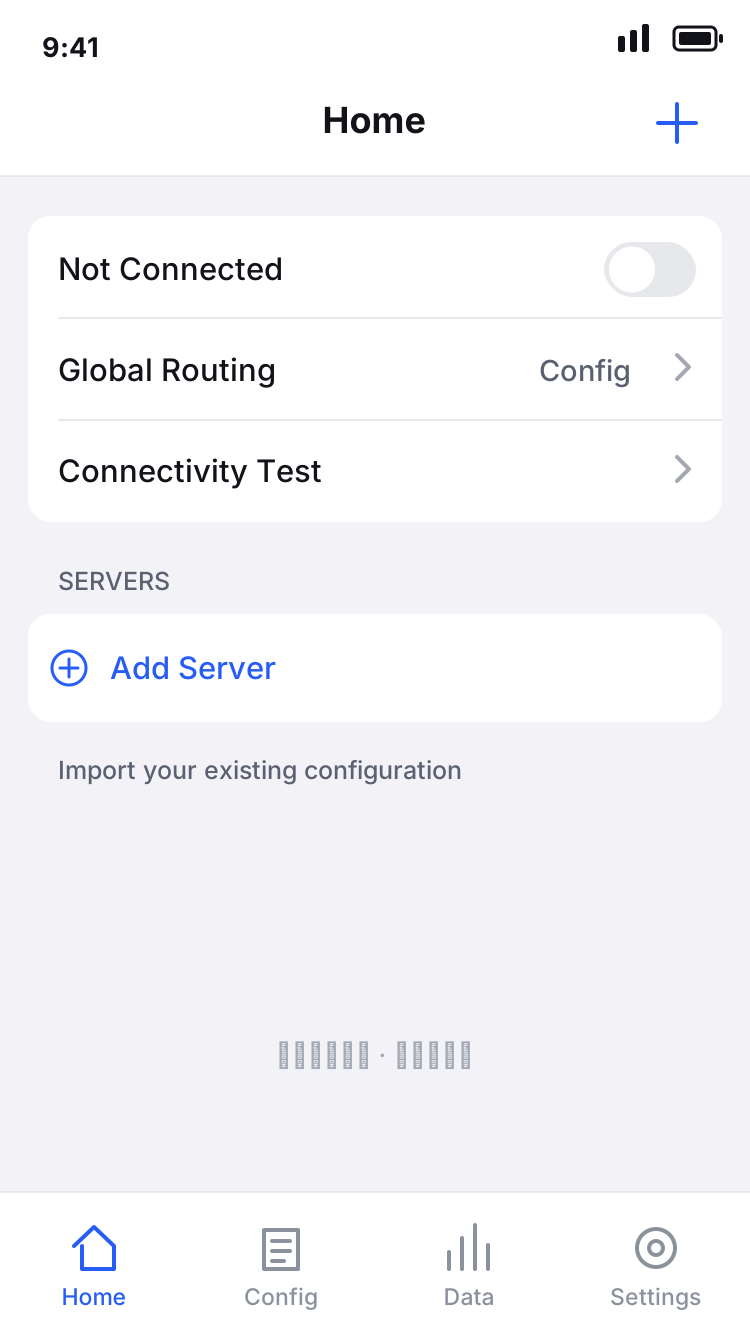
Check for iPhone / iPad app updates in the App Store; get new Mac, Windows, Android and Linux installers from this site's download page. Before updating, note the selected configuration, Global Routing state and commonly used servers, and keep necessary backups. After updating, run a connection test before restoring more complex rules and On Demand conditions. This helps avoid introducing several changes at once.
Desktop and Android versions use their respective platform download options; they do not follow the iPhone / iPad App Store purchase process. If a system warning appears during installation, first confirm that the file came from this site, then follow the installation approval instructions for your system on the download page. Restrictions on organization-managed devices should be handled by an administrator. Do not disable all system protection just to run the app.